> ## Documentation Index
> Fetch the complete documentation index at: https://fillout-005a867b-dependabot-npm-and-yarn-fast-uri-3-1-5.mintlify.site/llms.txt
> Use this file to discover all available pages before exploring further.

# Enable Two-Factor Authentication (2FA)

> Add an extra layer of security to your account. Optionally, require all org members to turn on 2FA.

export const SupportBanner = () => {
  const titleId = React.useId();
  return <div className="support-banner" role="region" aria-labelledby={titleId}>
      <span className="support-banner__ring support-banner__ring--outer" aria-hidden="true" />
      <span className="support-banner__ring support-banner__ring--middle" aria-hidden="true" />
      <span className="support-banner__ring support-banner__ring--inner" aria-hidden="true" />
      <span className="support-banner__ring support-banner__ring--center" aria-hidden="true" />

      <div className="support-banner__content">
        <div className="support-banner__title" id={titleId} role="heading" aria-level="2">Still have questions?</div>

        <div className="support-banner__copy">
          <span className="support-banner__line">Our team is happy to help. Start a live chat using the</span>
          <span className="support-banner__line">
            chat bubble <span className="support-banner__chat-icon" aria-hidden="true" /> in the bottom right, or email us at
          </span>
          <span className="support-banner__line">
            <a href="mailto:support@fillout.com">support{'@'}fillout.com</a>
          </span>
        </div>

        <a className="support-banner__cta" href="mailto:support@fillout.com">Contact us</a>
      </div>
    </div>;
};

## Set up 2FA

<Steps>
  <Step title="Open settings">
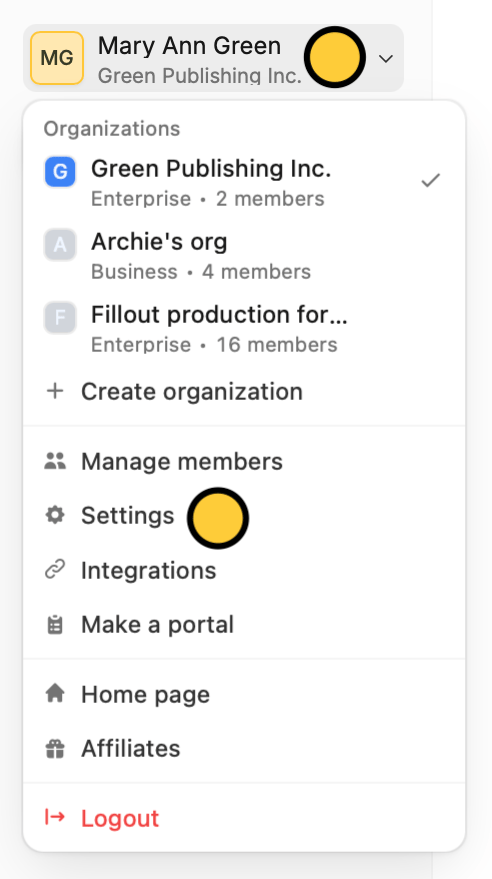
    On the upper left corner of your Fillout dashboard, click your `Account name` followed by `Settings`.
    <img src="https://mintcdn.com/fillout-005a867b-dependabot-npm-and-yarn-fast-uri-3-1-5/Zl2NRxHQDFzBd0IK/images/Screenshot2025-09-23at2.36.57PM.png?fit=max&auto=format&n=Zl2NRxHQDFzBd0IK&q=85&s=889a1ad3604a143cd6ceea030ce656ac" alt="Screenshot 2025-09-23 at 2.36.57 PM.png" title="Screenshot 2025-09-23 at 2.36.57 PM.png" style={{ width:"35%" }} width="492" height="879" data-path="images/Screenshot2025-09-23at2.36.57PM.png" />

    <Check>
      This feature is available on all plans including the Free tier.
    </Check>
  </Step>

  <Step title="Go to account settings">
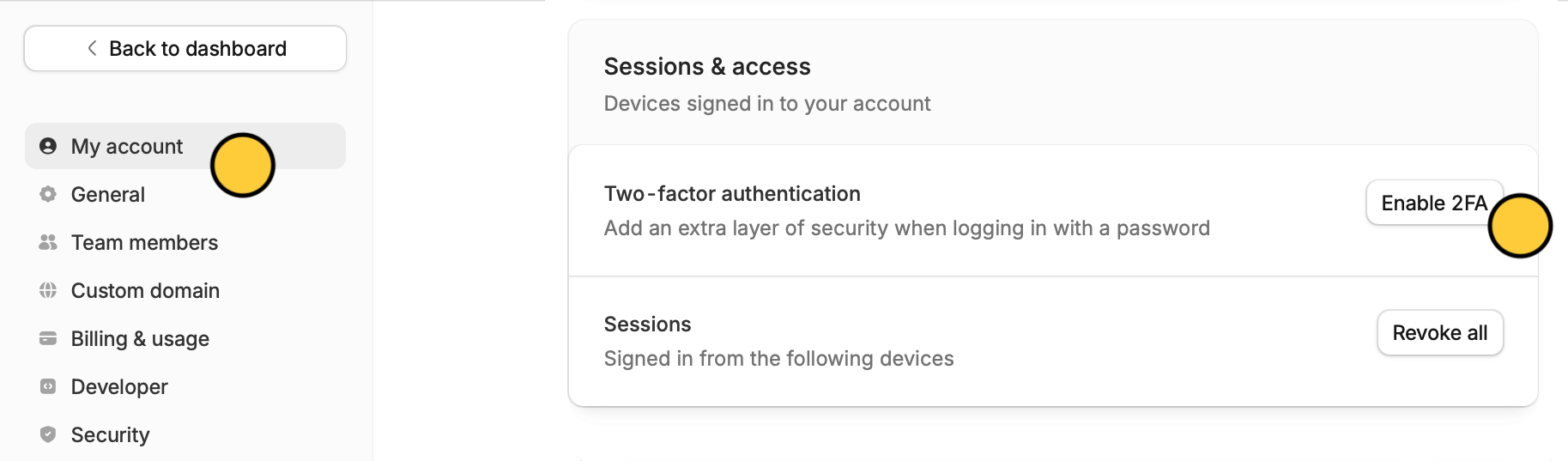
    In the **My account** page, `Enable 2FA`.
    <img src="https://mintcdn.com/fillout-005a867b-dependabot-npm-and-yarn-fast-uri-3-1-5/evJejt18HYXJKjEH/images/Screenshot2025-12-11at5.27.44PM.png?fit=max&auto=format&n=evJejt18HYXJKjEH&q=85&s=af9f5e1efae61dfbeeacbdda0c570ef1" alt="Screenshot 2025-12-11 at 5.27.44 PM.png" title="Screenshot 2025-12-11 at 5.27.44 PM.png" style={{ width:"88%" }} width="1827" height="537" data-path="images/Screenshot2025-12-11at5.27.44PM.png" />
  </Step>

  <Step title="Verify with an authenticator app">
    Scan the QR code in the popup, and input the **6-digit code** generated by your authentication app or password manager. Then, click `Enable`.
    <img src="https://mintcdn.com/fillout-005a867b-dependabot-npm-and-yarn-fast-uri-3-1-5/Lq83nNnBnAASvXt8/images/image.png?fit=max&auto=format&n=Lq83nNnBnAASvXt8&q=85&s=f0db6d1ba87c3c0792a4bbf93589eab7" alt="image.png" title="image.png" style={{ width:"47%" }} width="1780" height="440" data-path="images/image.png" />

    That's it! 2FA is now enabled. You'll be asked for a 6-digit code from your authentication app or password manager when logging in on a new device or browser.
  </Step>
</Steps>

## Require 2FA for all org members

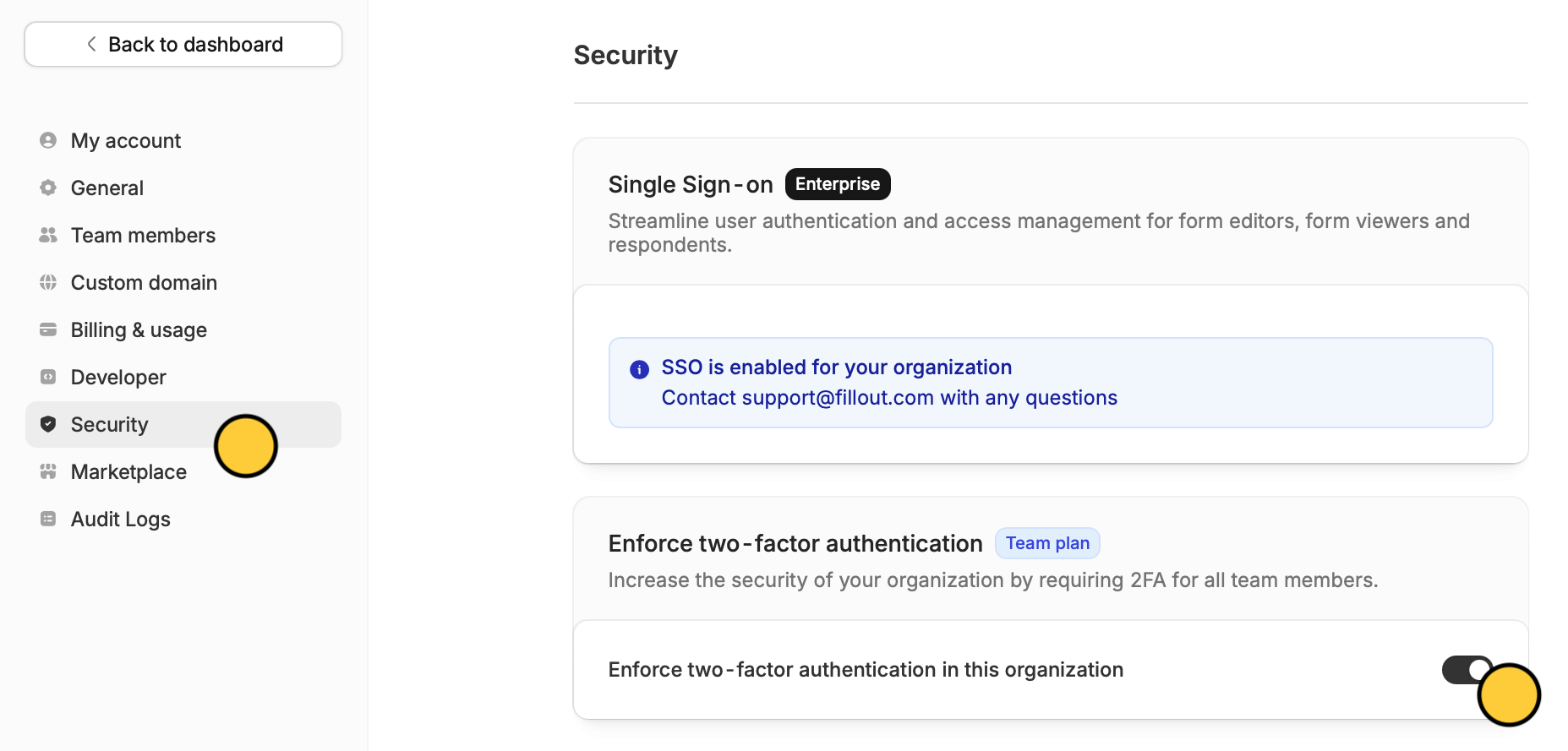
In **Security** settings, toggle the `Enforce two-factor authentication in this organization` switch.
<img src="https://mintcdn.com/fillout-005a867b-dependabot-npm-and-yarn-fast-uri-3-1-5/evJejt18HYXJKjEH/images/Screenshot2025-12-11at5.33.24PM.png?fit=max&auto=format&n=evJejt18HYXJKjEH&q=85&s=09c236d0c2005373c7b11f96fee73c2b" alt="Screenshot 2025-12-11 at 5.33.24 PM.png" title="Screenshot 2025-12-11 at 5.33.24 PM.png" style={{ width:"79%" }} width="1855" height="889" data-path="images/Screenshot2025-12-11at5.33.24PM.png" />

<Info>
  This feature is available on the **Team** plan. Learn more [**here**](https://www.fillout.com/enterprise).
</Info>

## Related article

<CardGroup cols={3}>
  <Card title="SAML SSO" icon="shield-keyhole" iconType="regular" color="#FFC738" href="/saml-sso">
    Enable SSO through Okta, Azure AD, and more.
  </Card>
</CardGroup>

<SupportBanner />
